Is my trust eligible for online banking?
All trust types are eligible for online banking, though only your trust’s signatories will be able to sign up. To register your details, please click here.
After you have successfully registered your details, we will email you your username and a temporary password. This email should arrive within a few minutes. If it doesn’t, please check your junk or spam folders. You can then log in to online banking here. Please note, if you have not consented to email communications, your details will be sent by post.
To find out more about the access level you will have, please see Who can access online banking?
Who can access online banking?
Only signatories for your trust will have access to online banking, which includes the ability to provide maturity instructions, change their personal details, and send secure messages.
There is no limit on how many signatories you can add to your account. If you would like to add more, please complete a mandate by heading to our ‘Change of details’ page here.
You will be redirected to a page hosted by our partner DocuSign, where you will find the form itself.
Please note, you will need to supply the existing signatories’ email addresses on the form so that they can agree to any changes you make.
If we are not able to confirm a new signatory’s identity electronically, we will ask you for a copy of their ID. We will let you know when we have updated the signatories.
Is online banking available for Trusts?
All trusts are eligible for online banking but only signatories can register. To register for online banking please click here.
After you have registered you will receive an email with your username and a temporary password. This email should arrive within a few minutes, if it doesn’t, please check your junk/spam folders.
If you have already registered for online banking you can login here.
Push Notification
Below is a short video guide on how to register for online banking using push notifications:
SMS Notification
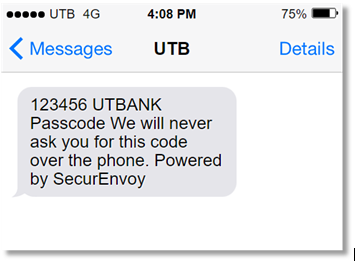
Choosing SMS means we will use a text message to complete authentication using a one-time passcode sent to your registered mobile number.
An example of the message we send for Two Factor Authentication is displayed below. You only need to enter the numbers displayed in the SMS:
What is dual authorisation and when does it apply?
Dual authorisation is required when your signing arrangements are set to ‘both’, ‘any two’ or ‘all’ to sign, i.e. you have stated that in order to make any changes or provide maturity instructions on your account, two signatories must consent separately to the request.
For online banking, this applies when you wish to provide us with maturity instructions or give notice on any account held with United Trust Bank.
How does dual authorisation work?
Dual authorisation is required when your signing arrangements are set to ‘both’, ‘any two’ or ‘all’ to sign, i.e. you have stated that in order to make any changes or provide maturity instructions on your account, two signatories must consent separately to the request. For online banking, this applies when you wish to provide us with maturity instructions or give notice on any account held with United Trust Bank.
What if I hold both a personal account and a trust account?
In the event that you hold a personal account and also act as a signatory for a trust, and you want to register both for online banking, you will need to complete the registration form separately for your personal online banking and your trust online banking.
This is because account numbers are directly linked to the customer type and profile, i.e. a personal customer can only see their personal accounts on online banking and a trust customer can only see their trust accounts.
If you act as a signatory for more than one trust, you will need to sign these up separately as well since only the relevant accounts for that trust will show online.
How do I manage my account?
The easiest way to manage your account is via online banking. Register your details here to get started, and then you can log in here. You will then be able to send us secure messages, arrange withdrawals, provide maturity instructions, serve notice, and more.
The UTB Trustee Reserve Deposit Account can only be managed online, so please ensure if you have opened one of those accounts that you also register for online banking.
For our other trust accounts, these can also be serviced by calling us on 020 7190 5599 or freephone 0800 083 2228, or you can reach out to us via our contact form.
What happens when my account reaches maturity?
We will contact you two weeks before your bond matures to ask what you would like to do with the funds.
For online banking customers, we will also send you a text message to confirm your account is approaching maturity, and you can log in to provide your instructions from that day onwards. Please note, all signatories must have signed up or online instructions will not go through fully.
If you don’t provide instructions before your maturity date, we will automatically transfer the full balance (including any interest earned) into your UTB Trustee Reserve Deposit Account
How do I update the signatories on my account?
If you need to add or remove a signatory from your Trustee Reserve Deposit Account you can do so by completing a new mandate form by visiting our ‘Change of details’ page here and complete the steps under the ‘Changing Mandates’ section.
Please note we will require supporting documentation from the Trust including an amendment to the Trust Deed and a new copy of the TRS Registration (if applicable) which confirms the change in trustee/beneficiary.